Low’s Adventures 2 on a Chromebook: Saves, Keys, Sound
Published · 2 min read
Most people play Low’s Adventures 2 on a school Chromebook or a shared laptop, in short sessions. That raises the same few questions every time: will my level still be there tomorrow, why do the keys not work, how do I turn the music off before the teacher hears it. Here are the answers, based on how the game itself works.
Where your progress is kept
The game stores the level you reached in your browser’s local storage, under the game’s own save name. Nothing is sent to an account and there is nothing to sign in to. That has three consequences.
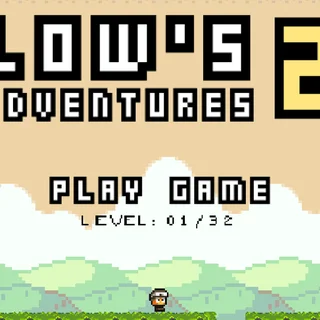
- Same browser, same profile: your level is still there. The title screen shows it as LEVEL: xx/32 and Play Game continues from it.
- Another computer, another browser or another Chrome profile: you start at level 1. The save does not travel.
- Guest mode, incognito windows and “clear browsing data” erase it. On a school Chromebook that is logged into your own account, it normally survives.
Reset Levels on the title screen deliberately deletes the save. It is in the bottom-left corner, away from Play Game, but it is worth knowing it is there before you click around.
The keys do nothing
The game only hears the keyboard when it has focus. Click once inside the game area, then press Enter on the splash screen. If you clicked the address bar or another tab in between, click the game again. The controls are the arrow keys or W, A and D; S is not used, and there is no action key besides jump.
Sound
Press M, or click the note icon in the top-right corner of the game, to switch the music off. Browsers do not play any sound until you have clicked or pressed a key on the page, so the game is silent until then anyway.
Getting back to the menu
Esc, or the house icon in the top-left corner, leaves the level and returns to the title screen. You keep your saved level; you only lose your progress through the level you were in.
Screen size
The game is drawn at 640×480 and scaled up to fit, with sharp pixels. The player on this site fits it to your window; the full-screen button in the bar under the game makes it as large as your screen allows. On a phone, turn the phone sideways — the on-screen left, right and jump buttons sit at the bottom of the picture.
If it is slow
Low’s Adventures 2 is a small game — about six megabytes including its sound — and it runs comfortably on an entry-level Chromebook. If it stutters, close other tabs that are playing video, and make sure the Chromebook is not in a battery-saver mode that throttles the browser.
Is it blocked at school?
The game is served from lowsadventure2.com itself as a normal web page, with no download and no plugin, so it opens wherever ordinary websites do. If your school’s filter blocks the site, only the network’s administrator can change that.
Back to the game: play Low’s Adventures 2, or read the level guide for ladders, springs, the umbrella glide and the boss.
More from the blog
- Low’s Adventures 2 Guide: Ladders, Gliding and the Boss
Everything Low’s Adventures 2 teaches across its 32 levels, in the order it asks for it: edge jumps, coins and trophies, ladders, springs, enemies, gliding and the boss.